iPhone how-to
How to identify trees with your iPhone
Three ways that work today, with the exact button names from Apple's and Google's own help pages, what each one needs and what each one gives you.
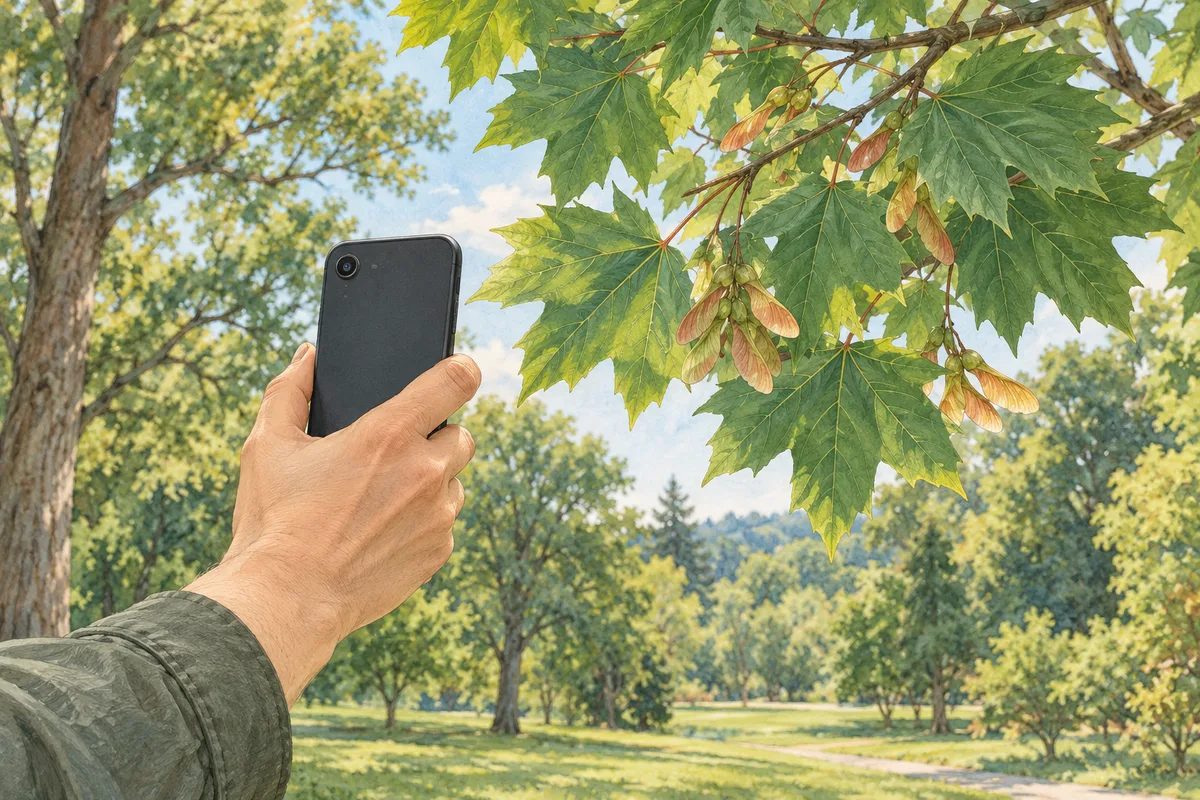
In short
To identify trees with an iPhone, open a tree photo in the Photos app and, if the Info button shows stars, tap it and then tap Look Up; Apple lists iOS 15 or later. Or open the Google app, tap Google Lens in the search bar, and point the camera at a leaf. A dedicated tree app such as Tree Identifier adds origin, growing conditions and a follow-up chat.
- Visual Look Up works on photos already in your library: a starred Info button means it found something it can look up.
- Google Lens lives inside the Google app on iPhone: tap Google Lens in the search bar, then Search or Photo picker.
- Whichever tool you use, photograph a clear leaf, the buds or the fruit, not a distant tree, and check the name against the tree.
An iPhone can identify a tree three ways: with Visual Look Up, which is built into iOS and works on photos in your library; with Google Lens, which runs inside the Google app; and with a dedicated tree identification app. All three start from the same thing, a clear photo of a leaf, the bark, the buds or the fruit, so the first step is the same for each. The button names below are quoted from Apple's and Google's own help pages, read on October 21, 2026.
Visual Look Up in the Photos app (built into iOS)
Visual Look Up needs no download. Apple's iPhone User Guide for iOS 27, in Identify objects in your photos and videos, gives these steps:
- Open a photo or image in full screen, or pause a video on any frame.
- If the Info button displays a symbol with stars, Visual Look Up is available.
- Tap the starred Info button, then tap Look Up at the top of the photo information to view the results.
- Close the results, then swipe down on the photo to close the photo information.
Apple's support article Look up what's in a photo with your iPhone or iPad (published September 15, 2025) adds what to expect: a leaf icon appears for plants and flowers, and results come from Siri Knowledge and the web. If the Info button doesn't have a star, Visual Look Up isn't available yet for that photo. The same steps work on images in Notes, Mail and Messages: touch and hold an image to select it first. In Safari, tap Look Up in the options menu.
What Apple lists as requirements:
- iPhone: iOS 15 or later.
- iPad: iPadOS 15.1 or later on iPad Pro 12.9-inch (3rd generation) or later, iPad Pro 11-inch (all models), iPad Air (3rd generation) or later, iPad (8th generation) or later, or iPad mini (5th generation) or later.
- Language and region: Apple says Visual Look Up isn't available in all regions or languages. Its feature availability page lists Visual Look Up for Arabic (Saudi Arabia), Chinese, Traditional (Hong Kong and Taiwan), Dutch (Netherlands), English, French, German, Italian, Japanese, Korean, Portuguese (Brazil), Spanish, Thai and Turkish.
Visual Look Up gives you a name and links to learn more. Give it a photo where one leaf, flower or fruit is the clear subject.
Visual Intelligence with the camera (Apple Intelligence models)
On iPhones with Apple Intelligence, Apple's Visual Intelligence works live from the camera. Apple's iOS 27 guide says Apple Intelligence on iOS 27 is available on iPhone 15 Pro, iPhone 15 Pro Max, and iPhone 16 models or later, and isn't available in all languages or regions. You can activate Visual Intelligence by clicking and holding the Camera Control on supported models, from the Action button, from a Lock Screen control or from Control Center. Then point the camera at the tree and, to identify plants and animals, tap the result at the bottom of the screen.
Google Lens in the Google app
On iPhone, Google's help puts Lens inside the Google app and the Chrome app. Google's page Search with an image on Google lists what you need as the latest version of the Google app, or the Chrome app, and gives these steps:
- Open the Google app (Google also lists the Chrome app and Safari).
- In the search bar, tap Google Lens.
- To take a photo, point the camera at the leaf or fruit and tap Search. To use a photo you already took, tap Photo picker and select it.
- To search part of the image, drag the corners of the box around your selection. Google suggests a smaller area for more specific results.
- Scroll to the bottom for results. In the Google app you can tap Add to your search and type words, for example "bark" or "leaf underside", to refine it.
Google says results can include AI overviews, search results for objects in the image, similar images, and websites with the image or a similar image. Google's page doesn't list a minimum iOS version; it asks only for the latest Google app. Pressing and holding the shutter button to ask a question by voice is available only for English queries, according to the same page.
A dedicated tree app
A tree identification app does one job and returns more detail about the tree. Tree Identifier is one example: an iPhone app (iOS 16 or later; it also runs on iPad in iPhone layout, and there is no Android version). On the Home screen, tap Identify a Tree, then take a photo with the in-app camera or choose one from your library. The camera has flash, zoom, tap to focus and photo tips.
Each identification uses one photo, so choose the most telling one. The photo goes to a cloud AI model, so the app needs an internet connection. The result shows the common and scientific names, a short profile of the tree's characteristics, its origin and growing conditions. Three suggested questions and a chat box sit under the result, for questions like "how do I tell this from a black cherry?". The result has no confidence score and no list of alternative species. It's free to download with optional in-app purchases.
What each one gives you
This table compares what each tool returns and needs, from the help pages above and the app's own feature list. It makes no claim about which names more trees correctly; for what published studies found about photo apps, see how accurate tree identification apps are.
| Visual Look Up | Google Lens | Tree Identifier | |
|---|---|---|---|
| Where it lives | Photos, Safari, Notes, Mail, Messages (built into iOS) | Google app, Chrome app | Separate app from the App Store |
| What it needs | iOS 15 or later; a supported language | Latest Google app | iOS 16 or later; an internet connection |
| Live camera | Visual Intelligence, on Apple Intelligence models | Yes, tap Search | Yes, in-app camera |
| Photos from your library | Yes | Yes, Photo picker | Yes |
| What you get | A name, with results from Siri Knowledge and the web | AI overview, web results, similar images | Names, characteristics, origin, growing conditions |
| Follow-up questions | Tap to learn more | Add to your search | Chat under each result, plus a Tree Expert tab |
| Saved finds | Your photo library | Your photo library | History, a Collection catalog and a Tree Map |
Photos that give any of them a fair chance
The tool matters less than the photo. The New York Botanical Garden's guide to photographing plants for identification asks for clear close-ups of leaves (top and underside) and of how they sit on the stem, plus bark, buds, twigs and fruit, and a view of the whole plant. It warns that zooming in on a distant shot turns details to pixels, and that bright sunshine washes them out: shoot on a cloudy day or early or late in the day.
On an iPhone, that means walking close enough that one leaf nearly fills the frame, tapping the screen on the leaf to focus, and turning the leaf over for a second shot. If a result looks wrong, photograph a different part of the tree rather than the same leaf again. The full shot list, and what to do when the name doesn't fit, is in how to identify a tree from a photo. Once you know the species, you can estimate the tree's height from where you stand.
What a photo can't settle
- None of these tools can smell a twig, cut one open or feel a leaf's hairs, and some tree species are only separable that way.
- A photo of a planted cultivar may return the species name or the wrong species; none of these tools reads a nursery tag for you.
- Tree Identifier shows no confidence score and no list of alternative species, so a doubtful result needs your own check against the tree.
Questions people ask
Can an iPhone identify trees without an app?
Yes. Visual Look Up is built into iOS: open a tree photo in Photos, and if the Info button shows stars, tap it and then tap Look Up. Apple says it identifies plants, among other things, and that it needs iOS 15 or later on iPhone. It isn't available in every region or language.
Can Google Lens identify trees?
Google Lens can search with a photo of a plant. Google's help page gives that exact example: take a photo of a plant and use it to search for information or similar images. Results can include AI overviews, search results for objects in the image, similar images and websites with the same or a similar image.
Why don't I see Look Up on my tree photo?
Apple says that if the Info button doesn't have a star, Visual Look Up isn't available yet for that photo. Try a closer, sharper photo of one leaf or flower, check that your iPhone runs iOS 15 or later, and check Apple's feature availability page for your language.
How do I identify a tree with my iPhone camera in real time?
In the Google app, tap Google Lens in the search bar and point the camera at the leaf, then tap Search. On iPhone models with Apple Intelligence, Apple's Visual Intelligence also works from the camera: activate it, point at the plant and tap the result at the bottom of the screen.
How do I identify trees with Google on iPhone?
Install or update the Google app, which Google lists as a requirement, then tap Google Lens in the search bar. Take a photo with Search, or tap Photo picker to choose one from your library. To narrow the search, drag the corners of the box around the leaf or fruit.
Sources
- Look up what's in a photo with your iPhone or iPad — Apple Support
- Identify objects in your photos and videos on iPhone (iPhone User Guide, iOS 27) — Apple Support
- Learn about what's around you with Visual Intelligence on iPhone (iPhone User Guide, iOS 27) — Apple Support
- iOS and iPadOS Feature Availability: Visual Look Up — Apple
- Search with an image on Google (iPhone & iPad) — Google Search Help
- Photographing Plants for Identification — New York Botanical Garden, LuEsther T. Mertz Library